> ## Documentation Index
> Fetch the complete documentation index at: https://docs.apigene.ai/llms.txt
> Use this file to discover all available pages before exploring further.
# Agent Builder
> Create and configure AI agents through a guided conversational workflow
## Overview
**Agent Builder** is a dedicated Copilot mode for designing, listing, inspecting, and configuring agents. Use it when you want to **define** an agent as a resource — instructions, applications, MCP servers, skills, and setup — rather than simply **chat** with one.
Chat mode is for having a conversation (optionally with one agent selected via `@`). Agent Builder is for agent management: create, clone, validate, and wire integrations before you use the agent in everyday chat.
 ## Chat vs Agent Builder
| | **Chat** | **Agent Builder** |
| ------------------- | ------------------------------------------------------ | ---------------------------------------------------------------------- |
| **Purpose** | Ask questions, run tools, use an agent in conversation | Create and configure agents |
| **Agent selection** | Pick one agent via `@` to shape behavior | Build or edit the agent definition itself |
| **Tools available** | Application tools, workflows, MCP actions | Builder tools (search apps, generate instructions, create agent, etc.) |
| **Best for** | "Read my email", "Summarize this doc" | "Build me a support agent for Slack and Jira" |
If you ask in **Chat** to create an agent, list your agents, or inspect full agent configuration, Copilot will suggest switching to **Agent Builder** and show a one-click **Switch to Agent Builder** card.
## Switching to Agent Builder
### From the home screen
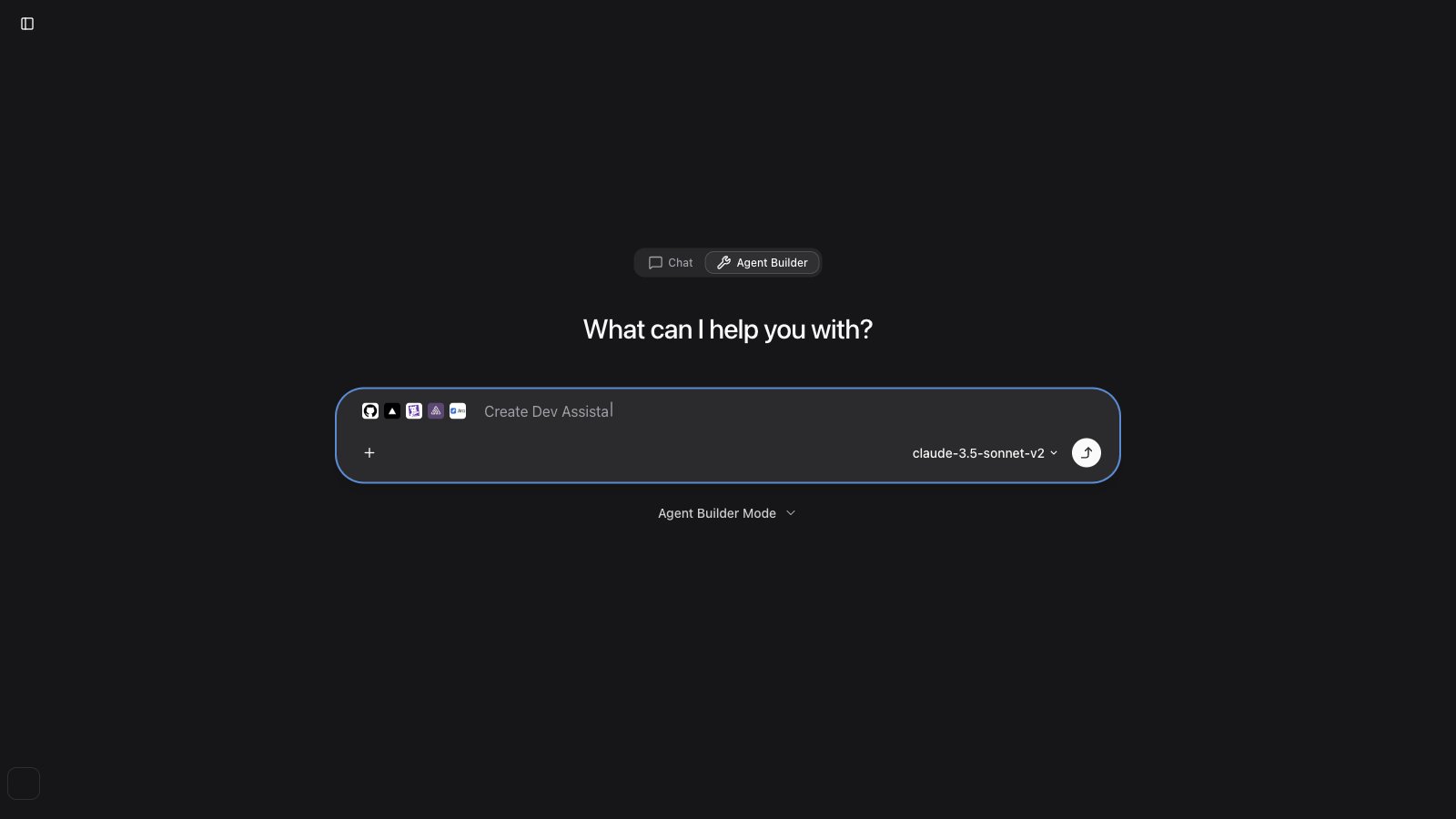
On a **new chat** (home), use the mode toggle in the top bar:
1. **Chat** — default conversational mode
2. **Agent Builder** — agent creation and management mode
The message input border turns blue in Agent Builder so you can tell which mode you are in at a glance.
The Chat / Agent Builder toggle is available on the **home** (new chat) screen. From an ongoing thread, use the in-chat **Switch to Agent Builder** card or start a **New chat** to change modes.
### From an ongoing chat
When Copilot detects agent-management intent (create, list, clone, inspect config, compare agents), it can show an **Agent Builder** shortcut card in the thread. Click **Switch to Agent Builder** to change mode without leaving the conversation context.
You can also open **Agents** from the main menu (`/agents`, `/agent/new`, `/agent/[id]`) for the full agent editor UI.
## What Agent Builder can do
Agent Builder uses specialized tools to help you end-to-end:
* **Discover applications** — search APIs and MCP servers, browse a preloaded catalog of installed and official integrations
* **Generate and refine instructions** — AI-drafted system prompts based on your use case
* **Skills** — search your org library and [skills.sh](https://skills.sh), propose skills to attach, and wait for your approval before creating the agent
* **Create and update agents** — name, description, instructions, applications, MCP servers, contexts, and skills
* **Clone agents** — start from an existing agent as a template
* **Validate configuration** — check names, instructions, and attachments before saving
* **Present results** — after creation, shows an agent card and setup instructions for connecting to Claude, Cursor, ChatGPT, and other MCP clients
## Recommended workflow
Agent Builder follows a guided flow. You do not need to memorize tool names — describe what you want in natural language.
### 1. Describe the agent
Start with a short brief, for example:
```
Build an agent that triages GitHub issues and posts summaries to Slack.
```
Agent Builder may ask **2–3 clarifying questions** about purpose, capabilities, and required integrations before proceeding.
### 2. Discover integrations
It searches your installed applications and official catalog, and recommends APIs (OpenAPI integrations) or native MCP servers as appropriate. Install native servers first via [Native MCP Servers](/user-guide/mcp-servers) when needed.
### 3. Optional: attach skills
If your use case maps to reusable workflows (SEO, code review, deploy runbooks, etc.), Agent Builder can:
1. Search your org **Skills** library and the public registry
2. Show an interactive **skill proposals** card (1–5 matches)
3. Wait for you to install, select, or skip — it never auto-installs without your choice
Skipped skills do not block agent creation.
Agent Builder (and Chat) can also show a **use case proposals** card when you ask for suggested workflows across apps — review the proposals before acting on them. See [Copilot → Use Case Proposals](/user-guide/copilot#use-case-proposals).
### 4. Generate instructions
Agent Builder drafts a structured system prompt (role, guidelines, boundaries) and can refine it based on your feedback.
### 5. Validate and create
Configuration is validated (name format, required instructions, valid app/MCP references), then the agent is created.
### 6. Review setup
Immediately after creation:
* An **agent details card** appears in chat (click through to the edit page)
* An **agent setup** card shows how to connect the agent to external AI clients via MCP
## Agent naming guidelines
Agent Builder enforces concise names:
* **2–3 words** maximum (e.g. "Dev Assistant", "Support Bot")
* Letters, numbers, spaces, hyphens (`-`), and underscores (`_`) only
* Avoid long compound names like "Dev Flow Assistant (GitHub + Jira)"
## Example prompts
**Create from scratch**
```
Create an agent that helps our sales team query Salesforce and draft follow-up emails.
```
**Clone and adapt**
```
Clone my "Support Bot" agent and add Gmail so it can read customer threads.
```
**List and inspect**
```
List my agents and show which applications each one uses.
```
**Skills-focused**
```
Build a PR review agent. Search for skills related to code review and attach the best match.
```
## After Agent Builder creates an agent
Fine-tune in the **Agents** editor:
* **Instructions** — edit the system prompt directly
* **Applications** — attach or remove OpenAPI integrations
* **MCP Servers** — native MCP attachments
* **Skills** — org skills library
* **Context** — reusable knowledge items
* **Generative UI** — visual templates for MCP App results (after the agent is saved)
* **Setup** — MCP URLs, per-tool toggles, and managed setup export
See [Agents](/user-guide/agents) for the full editor reference.
## Best practices
**Be specific about integrations**
* Name the systems you need (Slack, Jira, Gmail) so Builder picks the right apps
**Answer clarifying questions**
* Short answers upfront save back-and-forth later
**Use Chat for testing**
* After creation, start a new **Chat** thread and mention the agent with `@` to try it in a real conversation
**Iterate in the editor**
* Agent Builder gets you to a strong first version; use the Agents page for precise tool and instruction tweaks
## Troubleshooting
### I do not see the Agent Builder toggle
* Open a **new chat** from the home screen — the toggle is on the new-chat view
* From an existing thread, use the **Switch to Agent Builder** card or **New chat**
### Agent Builder created an agent but tools fail in Chat
* Open the agent in **Agents** → **Applications** / **MCP Servers** and confirm integrations are attached
* Configure **Security** credentials for each application
* Test with `@agent-name` in a fresh Chat thread
### Skills were skipped — can I add them later?
Yes. Open the agent → **Skills** tab, or browse the [Skills](/user-guide/skills) library and attach from there.
## Next steps
* [Agents](/user-guide/agents) — edit instructions, tools, generative UI, and setup export
* [Skills](/user-guide/skills) — org skill library and registry
* [Copilot](/user-guide/copilot) — use your agent in Chat mode
* [MCP Gateway](/user-guide/mcp-gateway/mcp-gateway-overview) — connect agents to external AI clients
## Chat vs Agent Builder
| | **Chat** | **Agent Builder** |
| ------------------- | ------------------------------------------------------ | ---------------------------------------------------------------------- |
| **Purpose** | Ask questions, run tools, use an agent in conversation | Create and configure agents |
| **Agent selection** | Pick one agent via `@` to shape behavior | Build or edit the agent definition itself |
| **Tools available** | Application tools, workflows, MCP actions | Builder tools (search apps, generate instructions, create agent, etc.) |
| **Best for** | "Read my email", "Summarize this doc" | "Build me a support agent for Slack and Jira" |
If you ask in **Chat** to create an agent, list your agents, or inspect full agent configuration, Copilot will suggest switching to **Agent Builder** and show a one-click **Switch to Agent Builder** card.
## Switching to Agent Builder
### From the home screen
On a **new chat** (home), use the mode toggle in the top bar:
1. **Chat** — default conversational mode
2. **Agent Builder** — agent creation and management mode
The message input border turns blue in Agent Builder so you can tell which mode you are in at a glance.
The Chat / Agent Builder toggle is available on the **home** (new chat) screen. From an ongoing thread, use the in-chat **Switch to Agent Builder** card or start a **New chat** to change modes.
### From an ongoing chat
When Copilot detects agent-management intent (create, list, clone, inspect config, compare agents), it can show an **Agent Builder** shortcut card in the thread. Click **Switch to Agent Builder** to change mode without leaving the conversation context.
You can also open **Agents** from the main menu (`/agents`, `/agent/new`, `/agent/[id]`) for the full agent editor UI.
## What Agent Builder can do
Agent Builder uses specialized tools to help you end-to-end:
* **Discover applications** — search APIs and MCP servers, browse a preloaded catalog of installed and official integrations
* **Generate and refine instructions** — AI-drafted system prompts based on your use case
* **Skills** — search your org library and [skills.sh](https://skills.sh), propose skills to attach, and wait for your approval before creating the agent
* **Create and update agents** — name, description, instructions, applications, MCP servers, contexts, and skills
* **Clone agents** — start from an existing agent as a template
* **Validate configuration** — check names, instructions, and attachments before saving
* **Present results** — after creation, shows an agent card and setup instructions for connecting to Claude, Cursor, ChatGPT, and other MCP clients
## Recommended workflow
Agent Builder follows a guided flow. You do not need to memorize tool names — describe what you want in natural language.
### 1. Describe the agent
Start with a short brief, for example:
```
Build an agent that triages GitHub issues and posts summaries to Slack.
```
Agent Builder may ask **2–3 clarifying questions** about purpose, capabilities, and required integrations before proceeding.
### 2. Discover integrations
It searches your installed applications and official catalog, and recommends APIs (OpenAPI integrations) or native MCP servers as appropriate. Install native servers first via [Native MCP Servers](/user-guide/mcp-servers) when needed.
### 3. Optional: attach skills
If your use case maps to reusable workflows (SEO, code review, deploy runbooks, etc.), Agent Builder can:
1. Search your org **Skills** library and the public registry
2. Show an interactive **skill proposals** card (1–5 matches)
3. Wait for you to install, select, or skip — it never auto-installs without your choice
Skipped skills do not block agent creation.
Agent Builder (and Chat) can also show a **use case proposals** card when you ask for suggested workflows across apps — review the proposals before acting on them. See [Copilot → Use Case Proposals](/user-guide/copilot#use-case-proposals).
### 4. Generate instructions
Agent Builder drafts a structured system prompt (role, guidelines, boundaries) and can refine it based on your feedback.
### 5. Validate and create
Configuration is validated (name format, required instructions, valid app/MCP references), then the agent is created.
### 6. Review setup
Immediately after creation:
* An **agent details card** appears in chat (click through to the edit page)
* An **agent setup** card shows how to connect the agent to external AI clients via MCP
## Agent naming guidelines
Agent Builder enforces concise names:
* **2–3 words** maximum (e.g. "Dev Assistant", "Support Bot")
* Letters, numbers, spaces, hyphens (`-`), and underscores (`_`) only
* Avoid long compound names like "Dev Flow Assistant (GitHub + Jira)"
## Example prompts
**Create from scratch**
```
Create an agent that helps our sales team query Salesforce and draft follow-up emails.
```
**Clone and adapt**
```
Clone my "Support Bot" agent and add Gmail so it can read customer threads.
```
**List and inspect**
```
List my agents and show which applications each one uses.
```
**Skills-focused**
```
Build a PR review agent. Search for skills related to code review and attach the best match.
```
## After Agent Builder creates an agent
Fine-tune in the **Agents** editor:
* **Instructions** — edit the system prompt directly
* **Applications** — attach or remove OpenAPI integrations
* **MCP Servers** — native MCP attachments
* **Skills** — org skills library
* **Context** — reusable knowledge items
* **Generative UI** — visual templates for MCP App results (after the agent is saved)
* **Setup** — MCP URLs, per-tool toggles, and managed setup export
See [Agents](/user-guide/agents) for the full editor reference.
## Best practices
**Be specific about integrations**
* Name the systems you need (Slack, Jira, Gmail) so Builder picks the right apps
**Answer clarifying questions**
* Short answers upfront save back-and-forth later
**Use Chat for testing**
* After creation, start a new **Chat** thread and mention the agent with `@` to try it in a real conversation
**Iterate in the editor**
* Agent Builder gets you to a strong first version; use the Agents page for precise tool and instruction tweaks
## Troubleshooting
### I do not see the Agent Builder toggle
* Open a **new chat** from the home screen — the toggle is on the new-chat view
* From an existing thread, use the **Switch to Agent Builder** card or **New chat**
### Agent Builder created an agent but tools fail in Chat
* Open the agent in **Agents** → **Applications** / **MCP Servers** and confirm integrations are attached
* Configure **Security** credentials for each application
* Test with `@agent-name` in a fresh Chat thread
### Skills were skipped — can I add them later?
Yes. Open the agent → **Skills** tab, or browse the [Skills](/user-guide/skills) library and attach from there.
## Next steps
* [Agents](/user-guide/agents) — edit instructions, tools, generative UI, and setup export
* [Skills](/user-guide/skills) — org skill library and registry
* [Copilot](/user-guide/copilot) — use your agent in Chat mode
* [MCP Gateway](/user-guide/mcp-gateway/mcp-gateway-overview) — connect agents to external AI clients