
Overview
Actions are the individual API calls that Copilot executes on your behalf. The Actions page provides a comprehensive log of all API interactions, allowing you to monitor, debug, and analyze your application usage.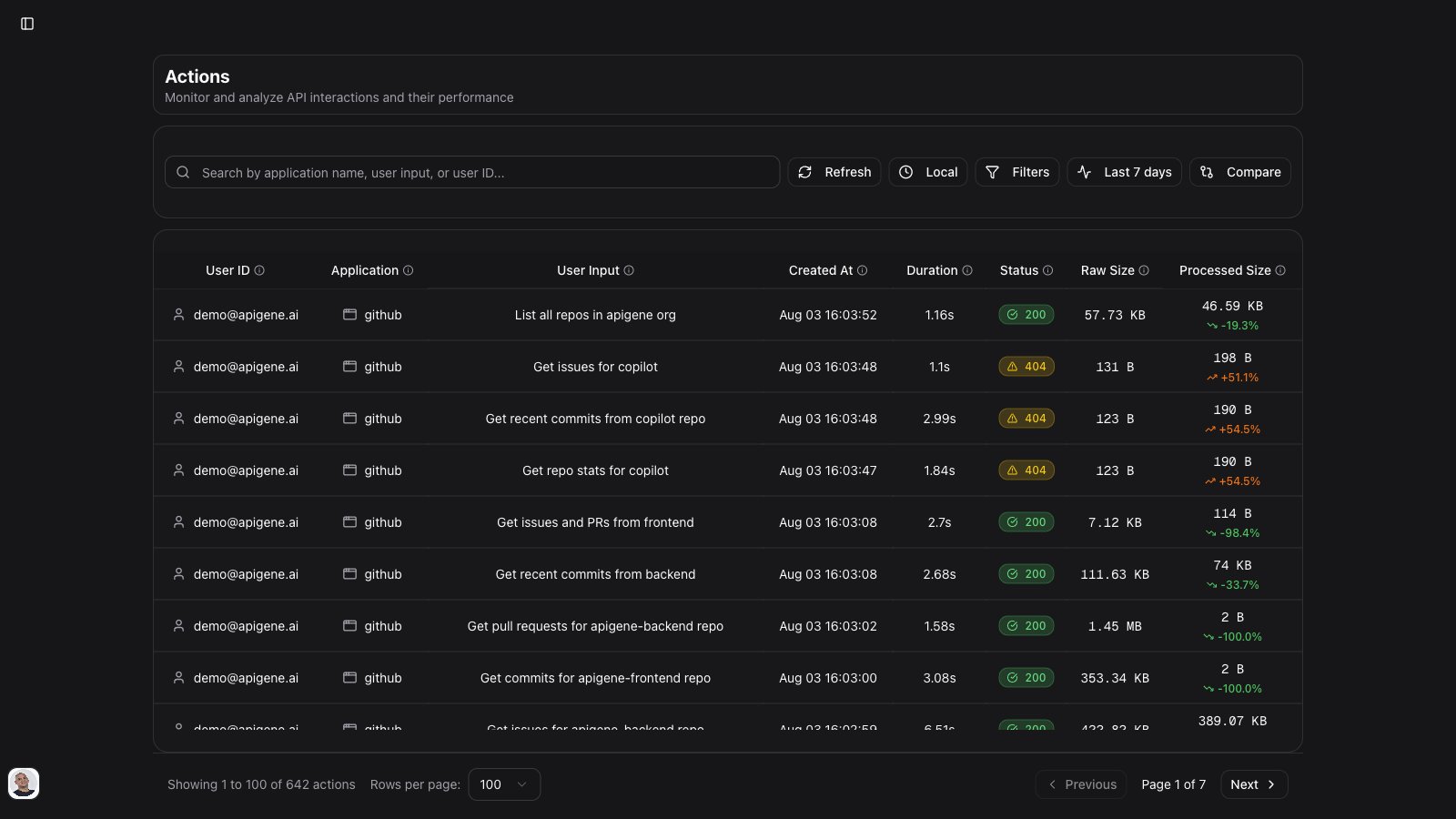
What Are Actions?
Every time Copilot interacts with an application, it creates an action record that includes:- Request details: What was sent to the API
- Response data: What the API returned
- Performance metrics: How long the call took
- Status information: Success or failure
- User context: Who initiated the action
Accessing Actions
In the Design workspace, open Monitor → Actions.Action List View
Information Displayed
Each action in the list shows: Timestamp- When the action was executed
- Formatted as date and time
- Sortable and filterable
- Which user initiated the action
- Links to user details
- Filter by specific users
- Which API was called
- Application name and title
- Quick access to application settings
- The original request that triggered the action
- Natural language query from Copilot
- Context about why the action was taken
- How long the API call took
- Measured in milliseconds
- Performance indicator
- HTTP response code (200, 404, 500, etc.)
- Color-coded for quick identification
- Green: Success (2xx)
- Yellow: Client errors (4xx)
- Red: Server errors (5xx)
- Whether the response was cached
- Improves performance for repeated queries
- Reduces API calls
Search and Filter
Search Actions
Use the search bar to find specific actions:- Search by user ID
- Search by application name
- Search by user input text
- Search by API operation
- Real-time filtering as you type
Advanced Filters
Click the Filters button to access advanced filtering: Resource Type- Filter by application/API
- Select specific applications
- View all or narrow down
- Filter by HTTP method (GET, POST, PUT, DELETE)
- Focus on specific operation types
- Success (2xx)
- Client errors (4xx)
- Server errors (5xx)
- Custom status codes
- Start date
- End date
- View actions within specific timeframes
- Useful for auditing and analysis
- Filter by specific user IDs
- See actions from particular team members
- Audit individual user activity
Applying Filters
- Click Filters button
- Configure your filter criteria
- Click Apply to filter results
- Click Clear to reset all filters
Activity Timeline
Click Last 7 days (or 7d on mobile) to show an activity timeline above the actions table. The timeline summarizes API activity over the past week so you can spot spikes, errors, or unusual patterns before drilling into individual rows. The timeline refreshes when you reload actions or change filters.Compare Actions
Use Compare to diff two action records side by side:- Click Compare in the toolbar to enter compare mode
- Select exactly two rows in the table (checkboxes appear in compare mode)
- Click View diff to open a fingerprint comparison (earlier vs later by timestamp)
You can compare at most two actions at a time. Uncheck one row before selecting a third.
Action Details
Click on any action to view complete details:Overview Information
Action Summary- Unique action ID
- Timestamp (precise date and time)
- User who executed it
- Application used
- Status code with indicator
Request Details
HTTP Method- GET, POST, PUT, DELETE, PATCH, etc.
- Shows the type of operation
- Full API endpoint that was called
- Path parameters included
- Query parameters visible
- All headers sent with the request
- Authentication headers
- Content-Type, Accept, etc.
- Payload sent to the API
- Formatted JSON/XML
- Copy to clipboard functionality
Response Details
Response Status- HTTP status code
- Status message
- Success/failure indicator
- Headers returned by the API
- Content-Type, Cache-Control, etc.
- Rate limit information if available
- Full response from the API
- Formatted and syntax-highlighted
- Expandable/collapsible sections
- Copy to clipboard functionality
screenText — typical of 3270-style or MCP host sessions), a Terminal tab appears next to the raw and processed views. It renders the screen text, input fields, and cursor so you can inspect the host UI without reading the JSON payload. The same tab is available on shared action links.
If your organization uses Headers only interaction recording, request and response bodies are redacted. You still see headers and payload size metadata. If recording is Disabled, new actions are not stored. Admins configure this under Settings → Organization → Interaction Recording.
- Raw response size in bytes/KB/MB
- Content size after processing
- Performance indicator
Performance Metrics
Duration Breakdown- Total request duration
- Network time
- Processing time
- Response parsing time
- Whether response was cached
- Cache hit/miss
- Cache expiry information
Action Management
Refresh Actions
Click the Refresh button to:- Load latest actions
- Update the list
- Check for new activity
Pagination
Navigate through large action lists:- Items per page: Choose 10, 20, 50, or 100 entries
- Previous/Next: Navigate between pages
- Page indicator: Shows current page and total pages
Export Actions
Export action data for analysis:- Apply filters to narrow down actions
- Click export button (if available)
- Choose format (CSV, JSON)
- Download the file
Understanding Status Codes
Success Codes (2xx) - Green
200 OK- Request succeeded
- Response body contains requested data
- Resource successfully created
- Response includes new resource details
- Request succeeded
- No response body
Client Error Codes (4xx) - Yellow
400 Bad Request- Invalid request format
- Missing required parameters
- Check request body and parameters
- Authentication failed
- Check credentials in application settings
- Token may have expired
- Authentication succeeded but access denied
- Check account permissions
- Verify required scopes
- Resource doesn’t exist
- Check resource ID
- Verify endpoint URL
- Rate limit exceeded
- Wait before retrying
- Review rate limit policies
Server Error Codes (5xx) - Red
500 Internal Server Error- API server error
- Not your fault
- Retry later or contact API provider
- Gateway/proxy error
- Temporary issue
- Retry after a moment
- API temporarily down
- Scheduled maintenance or outage
- Check API status page
Use Cases
Debugging
Identify Failures- Filter by error status codes (4xx, 5xx)
- Review failed actions
- Check request details
- Identify the root cause
- Fix configuration or parameters
- Find the failing action
- Copy request details
- Test manually or in Copilot
- Verify the fix
Performance Analysis
Slow Requests- Sort by duration (longest first)
- Identify slow endpoints
- Review request complexity
- Consider optimization strategies
- Filter by cached actions
- Calculate cache hit ratio
- Identify cacheable patterns
- Optimize caching strategy
Security Auditing
Access Review- Filter by date range
- Review which APIs were called
- Check for unusual patterns
- Verify proper access controls
- Filter by specific users
- See what actions they performed
- Audit for compliance
- Review sensitive operations
Usage Tracking
Application Usage- Group by application
- Count actions per application
- Identify most-used APIs
- Optimize or expand integrations
- Review common user inputs
- Identify frequent operations
- Create agents for common tasks
- Improve automation
Best Practices
Regular Monitoring
Daily Review- Check for error spikes
- Monitor performance trends
- Verify authentication status
- Review unusual activity
- Generate usage reports
- Identify optimization opportunities
- Review new integrations
- Clean up failed configurations
Error Management
Immediate Action on Errors- Set up alerts for critical failures
- Review 401/403 errors immediately (auth issues)
- Investigate 5xx errors with API provider
- Document and fix 4xx errors
- Test integrations before production use
- Validate credentials regularly
- Monitor rate limits
- Keep application configurations updated
Performance Optimization
Identify Bottlenecks- Find consistently slow endpoints
- Review large response sizes
- Optimize query parameters
- Consider pagination for large datasets
- Identify cacheable operations
- Review cache hit rates
- Adjust cache strategies
- Balance freshness vs performance
Troubleshooting
Actions Not Appearing
Possible Causes- No actions have been executed yet
- Filters are too restrictive
- Date range excludes all actions
- Page needs refresh
- Execute some actions in Copilot first
- Clear all filters
- Expand date range
- Click Refresh button
Can’t See Action Details
Possible Causes- Insufficient permissions
- Action data was purged
- Network connectivity issue
- Check user permissions
- Verify action ID is correct
- Refresh the page
- Contact administrator if needed
Filters Not Working
Possible Causes- Invalid filter criteria
- No actions match filters
- Filter syntax error
- Try simpler filters first
- Verify data exists in selected range
- Clear and reapply filters
- Use search instead
Privacy and Data Retention
Data Stored
Actions store:- Request and response metadata
- User information
- Timestamps and performance metrics
- Status codes and errors
Data Security
- All action data is encrypted
- Access controlled by user permissions
- Sensitive data can be masked
- Compliant with data regulations
Data Retention
- Actions are retained based on your plan
- Historical data for analysis and auditing
- Export before retention period expires
- Automatic cleanup of old data
Integration with Other Features
Insights Analytics
Actions feed into Insights:- Daily action usage charts
- Success/failure rates
- User activity graphs
- Application usage breakdown
Audit Logs
System-level changes create audit logs:- Application configuration changes
- Agent modifications
- Security updates
- User management
Context Items
Actions can inform context creation:- Common API patterns
- Frequent data access
- Usage-based recommendations
- Automation opportunities
Next Steps
- View analytics to understand usage patterns
- Configure applications to reduce errors
- Check audit logs for system changes
- Use Copilot to execute more actions