
Overview
Applications are the foundation of Apigene Copilot. Each application represents an API or service that Copilot can interact with on your behalf. By installing and configuring applications, you enable AI-powered interactions with your tools and services.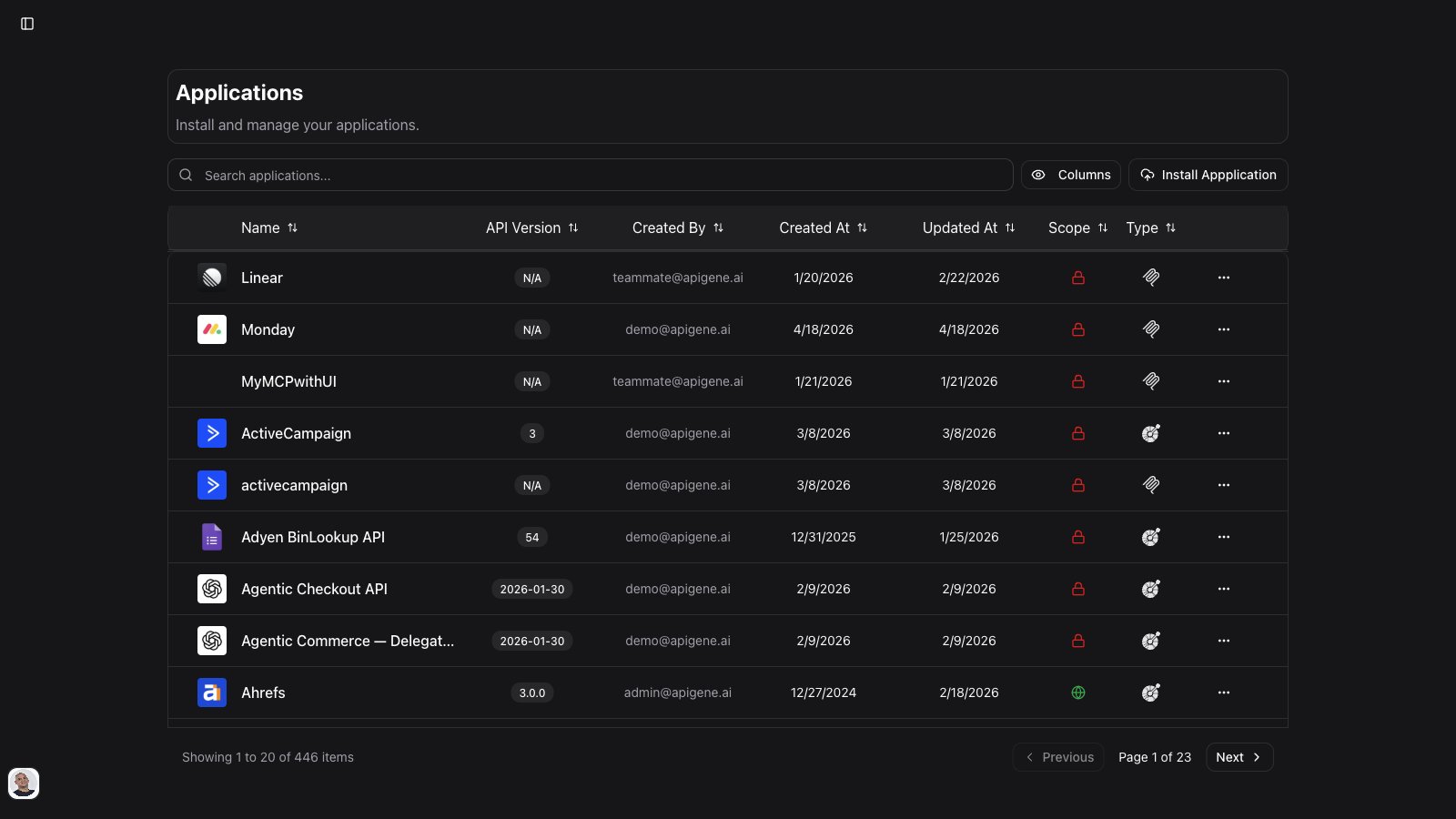
What Are Applications?
Applications are API integrations based on OpenAPI specifications. They provide:- API Operations: Individual endpoints the AI can call
- MCP Tools: AI-friendly tools generated from API operations
- Security Configuration: Authentication and credential management
- Metadata: Context and descriptions for better AI understanding
Application Lifecycle
Discovery
Browse available applications or add custom onesInstallation
Add the application to your workspaceConfiguration
Set up authentication and customize behaviorUsage
Use the application in Copilot conversationsInstalling Applications
When you click + Install Application, choose:- OpenAPI based — import from URL, file, Postman collection, or an OpenLegacy Hub project
- MCP Server — opens the official native MCP catalog (not an OpenAPI install)
Method 1: From OpenAPI URL
Install applications directly from a URL:- Navigate to Applications page
- Click + Install Application button
- Choose OpenAPI based, then From URL
- Enter the OpenAPI specification URL
- Click Install
- JSON (
.json) - YAML (
.yaml,.yml) - OpenAPI 2.0 (Swagger)
- OpenAPI 3.0
- OpenAPI 3.1
Method 2: Upload File
Install from a local OpenAPI specification file:- Navigate to Applications page
- Click + Install Application button
- Choose OpenAPI based, then From File
- Click to select or drag and drop your file
- Click Install
- Valid OpenAPI specification
- Maximum size: 10MB
- Formats: JSON or YAML
Method 3: From Postman Collection
Install from a Postman collection. Apigene converts the collection to OpenAPI, then runs the normal application install and reindex flow.- Navigate to Applications → + Install Application
- Choose OpenAPI based
- Select From Postman
- Upload your Postman collection file (JSON)
- Wait for conversion and install to finish
- Configure Security before making live calls
Conversion depends on collection structure. Nested folders become tags where possible. Review generated operations after install and reindex if tool metadata looks incomplete. If conversion fails, the error names the problem (invalid JSON, not a Postman collection, unresolved variables, or comments / stray quotes in the export).
Method 4: From OpenLegacy Hub
Install a Hub project’s OpenAPI as an application. Hub must be connected under Settings → Organization → Open Legacy (including Use in Agent Builder). See OpenLegacy Hub.- Navigate to Applications → + Install Application
- Choose OpenAPI based, then OpenLegacy Hub
- Search and select a Hub project (method count, last updated, and an Installed badge appear when relevant)
- Click Install (or Open if that project is already installed)
Method 5: Native MCP Server
To connect a remote MCP server instead of an OpenAPI spec:- Choose MCP Server on the install screen, or open MCP in the main nav
- Follow Native MCP Servers — official catalog, registry, or custom URL
Installation Process
When you install an OpenAPI-based application, Apigene:-
Checks LLM configuration
- Installing or reindexing an application requires at least one model provider configured for the organization
- If no provider is configured, complete Settings → AI Models first, then retry
- Validates the specification (or converts Postman → OpenAPI first)
-
Creates agentic metadata
- Generates tool descriptions
- Extracts parameter information
- Creates operation summaries
-
Initializes configuration
- Sets up security placeholders
- Creates default settings
- Prepares for first use
Configuring Applications
After installation, configure your application for use:General Settings
Access via Applications > [Application Name] > General tab Basic Information- API Name: Unique identifier (read-only)
- API Title: Display name for the application
- Description: What the application does
- Version: API version (from specification)
- Domain URL: Base URL for API calls
- Private: Only you can use it
- Organization: Available to your team
- Toggle visibility as needed
Security Configuration
Access via Applications > [Application Name] > Security tab This is the most critical configuration step. Without proper security setup, the application cannot make API calls.Authentication Types
API KeyCredential scope (Basic / Bearer / API key)
For static schemes (API key, Bearer, Basic), choose how secrets are stored:
When to use per-user
- Each teammate has their own provider account or personal token
- You do not want a shared org secret
- Chat prompts users to connect before calling the API
- Open Applications > [Application Name] > Security
- Select a static scheme (API key, Bearer, or Basic)
- Set Credential scope to Per-user
- Turn off shared security if it is still enabled (shared org secrets conflict with per-user scope)
- On the Security tab, under User credentials, click Connect
- Complete the connect-credentials form (or follow the connect link shown in chat when login is required)
- Use Clear credentials to remove your personal secret without changing the org scope
Security Setup Steps
-
Identify Authentication Method
- Check application documentation
- Look at the Security tab
- Note required credentials
-
Choose credential scope
- Org-shared for a single team secret
- Per-user when each member must use their own key
-
Obtain Credentials
- Generate API keys from provider
- Complete OAuth flow if needed
- Get service account or personal credentials
-
Configure in Apigene
- Org-shared: enter credentials in the Security tab and save
- Per-user: each user clicks Connect (or uses the chat connect link)
-
Verify Setup
- Use application in Copilot
- Check for authentication errors
- Update or clear credentials when they expire
API Operations
Access via Applications > [Application Name] > Operations tab View and manage all available API endpoints: Operation List- Method (GET, POST, PUT, DELETE, etc.)
- Path (e.g.,
/api/v1/users) - Summary description
- Tags for organization
- Full description
- Parameters (path, query, body)
- Request examples
- Response schemas
- Status codes
- Search by operation name or description
- Filter by HTTP method (GET, POST, etc.)
- Filter by path prefix (e.g.
/api/v1/users) - Filter by one or more tags
- Clear filters to reset the list; pagination respects the active filter set
MCP Tools Configuration
Access via Applications > [Application Name] > MCP Tools tab MCP (Model Context Protocol) tools are AI-optimized versions of your API operations. Tool Information- Tool name (e.g.,
github_create_issue) - Description for AI understanding
- Required parameters
- Optional parameters
- Success criteria
- Edit tool descriptions
- Modify parameter hints
- Add usage examples
- Set default values
- Adjust inputs, response handling, and UI templates where available
- Automatically created during installation
- One tool per API operation
- Can be regenerated via reindex (see below)
- Updates reflect in Copilot after reindex completes
Agentic metadata list
Access via Applications > [Application Name] > Metadata tab Browse and manage generated agentic metadata for each operation: Search and Filter- Search by operation ID or description
- Filter by metadata type
- Filter by priority rating (1 = highest priority, 10 = lowest)
- Results sort by rating so high-value operations surface first
Reindex and agentic metadata
Reindex regenerates MCP tool metadata from the current OpenAPI specification. Use it when:- You updated the OpenAPI spec
- Tool descriptions look stale or incomplete
- Install finished but metadata is still generating
- Postman conversion produced a coarse operation set you refined in the spec
- Open Applications → select the application
- Use the MCP Tools / metadata area Reindex action
- Watch status: queued → in progress → success or failure
- Keep an organization model provider configured — reindex requires LLM access for agentic metadata
Common Parameters
Access via Applications > [Application Name] > Common Parameters tab Set default values for parameters used across multiple operations: Use Cases- Organization ID (consistent across all calls)
- API version preference
- Response format preferences
- Default pagination limits
- Parameter name
- Default value
- Apply to all operations or specific ones
- Override in individual calls if needed
- Reduce repetitive input
- Ensure consistency
- Simplify Copilot interactions
- Minimize errors
Managing Applications
Application List
The Applications page shows all installed applications: Information Displayed- Application icon (auto-generated from domain)
- Application name and title
- Description
- Security status (configured ✓ / not configured ⚠️)
- Installation date
- Click to view/edit details
- Delete application
- Refresh metadata
- Export configuration
Searching Applications
Use the search bar to find applications:- Search by name
- Search by description
- Filter results in real-time
Updating Applications
When APIs change, update your applications:- Go to application details
- Click Update Specification
- Provide new URL or file
- Review changes
- Save updates
- New operations added
- Removed operations deprecated
- Modified parameters reflected
- Security schemes updated
- MCP tools regenerated
Deleting Applications
Remove applications you no longer need:- Navigate to Applications page
- Find the application
- Click the delete icon
- Confirm deletion
- All configuration is removed
- MCP tools become unavailable
- Copilot conversations can no longer use it
- Agents using this application will show errors
- Historical data is retained
Application Status Indicators
Security Status
✓ Configured (Green)- Authentication is set up (org-shared secret saved, or per-user credentials connected)
- Application is ready to use
- API calls will succeed
- Missing credentials (org secret not saved, or you have not connected yet in per-user mode)
- Application cannot make API calls
- Configuration required
- Credentials may be expired
- Security scheme or credential scope changed
- Reconfiguration recommended
Connection Status
Connected (Green)- Successfully making API calls
- Credentials are valid
- Service is reachable
- Authentication errors
- Network issues
- Service unavailable
- Not yet used in conversations
- Status unknown
- Test needed
Best Practices
Installation
Choose Quality Specifications- Use official OpenAPI specs when available
- Verify specification completeness
- Check for recent updates
- Use clear, recognizable names
- Include version if relevant
- Follow team naming conventions
Configuration
Secure Credential Management- Use service accounts when possible
- Rotate credentials regularly
- Don’t share credentials publicly
- Use environment-specific keys (dev/prod)
- Make a simple API call in Copilot
- Verify authentication works
- Check returned data format
- Confirm permissions are sufficient
Maintenance
Monitor Usage- Check Insights for application usage
- Identify unused applications
- Review API call success rates
- Monitor for errors
- Update specifications when APIs change
- Review security configurations quarterly
- Remove deprecated applications
- Document configuration changes
- Set common parameters to reduce overhead
- Configure only necessary operations
- Use appropriate authentication methods
- Monitor rate limits
Advanced Features
Custom Operation Metadata
Enhance AI understanding of operations:Parameter Templates
Create reusable parameter sets:Response Transformation
Configure how responses are displayed:- Full Response: Show complete JSON
- Summary: Show key fields only
- Custom Format: Define what to extract
- Error Handling: Custom error messages
Webhook Integration
For supported applications:- Configure webhook endpoints
- Receive real-time updates
- Trigger automated workflows
- Enable event-driven actions
Troubleshooting
Installation Fails
Invalid Specification- Verify OpenAPI format
- Use validation tools
- Check for syntax errors
- Ensure all required fields present
- Check URL accessibility
- Verify no authentication required for spec
- Try downloading and uploading as file
- Check firewall settings
Authentication Issues
401 Unauthorized- Verify credentials are correct
- Check if tokens have expired
- Confirm account has API access
- Review authentication method
- Check account permissions
- Verify required scopes granted
- Contact service administrator
- Review API access policies
API Calls Failing
Network Errors- Check internet connection
- Verify API service is online
- Review firewall rules
- Check for rate limiting
- Review required vs optional parameters
- Check parameter data types
- Verify parameter formats
- Review API documentation
- Check API status page
- Review error messages
- Verify data format expectations
- Check for breaking changes in API
Next Steps
- Use applications in Copilot to execute API operations
- Create agents with specific application access
- Monitor usage in Insights
- View API call logs for debugging