
Overview
Agents are specialized AI assistants that can be configured with specific instructions, tools, and behaviors. They enable you to create focused, reusable AI workflows tailored to particular tasks or domains.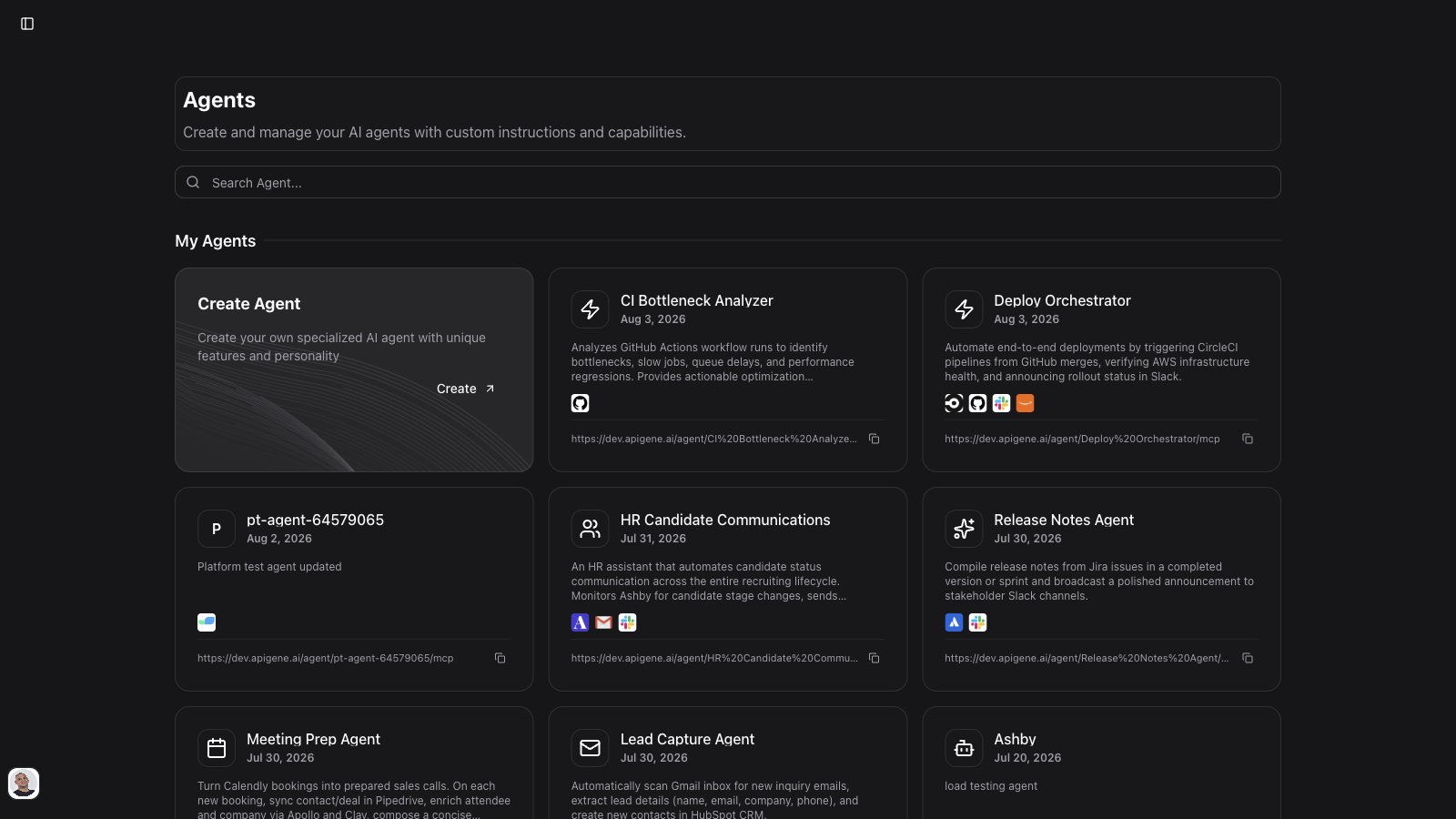
What Are Agents?
Think of agents as expert assistants with:- Custom instructions: Define how the agent should behave and respond
- Specific tools: Select which applications and APIs the agent can access
- Consistent behavior: Agents follow the same instructions every time
- Shareable knowledge: Make agents available across your organization
Key Features
Custom Instructions
Define exactly how your agent should operate:- Personality and tone
- Domain expertise
- Response format
- Decision-making guidelines
Tool Selection
Control which capabilities your agent has:- Select specific applications
- Choose individual API operations
- Configure MCP servers access
- Set tool usage policies
Visibility Control
Manage who can use your agents:- Private: Only visible to you
- Public: Available to your entire organization
- Easy visibility toggle
Version Control
Edit in draft, then publish when chat and MCP should pick up the change:- Save writes the draft only — live stays on the last published version
- Publish (Versions tab) creates a numbered version and points live at it
- Compare, restore a snapshot into draft, or switch live to an earlier version without changing the MCP URL
Creating an Agent
You can create agents in two ways:- Agent Builder (recommended) — conversational workflow in Copilot that discovers apps, drafts instructions, proposes skills, validates, and creates the agent
- Agents page — manual form at Agents → + New Agent
Step 1: Navigate to Agents
- Switch the sidebar to Design and open Build → Agents
- Click the + New Agent card
- You’ll see the agent creation form
Step 2: Configure Basic Information
Agent Name- Use lowercase kebab-case: letters, numbers, and hyphens only (for example
github-bot,support-agent) - Spaces and underscores are converted to hyphens as you type
- Maximum 64 characters; keep it short so MCP URLs stay readable
- Friendly label shown in chat, agent cards, and pickers (up to 64 characters)
- Leave empty to show the kebab-case name
- MCP URLs and
@mentions still use the agent name
- Explain the agent’s purpose
- Describe what it’s good at
- Helps team members understand when to use it
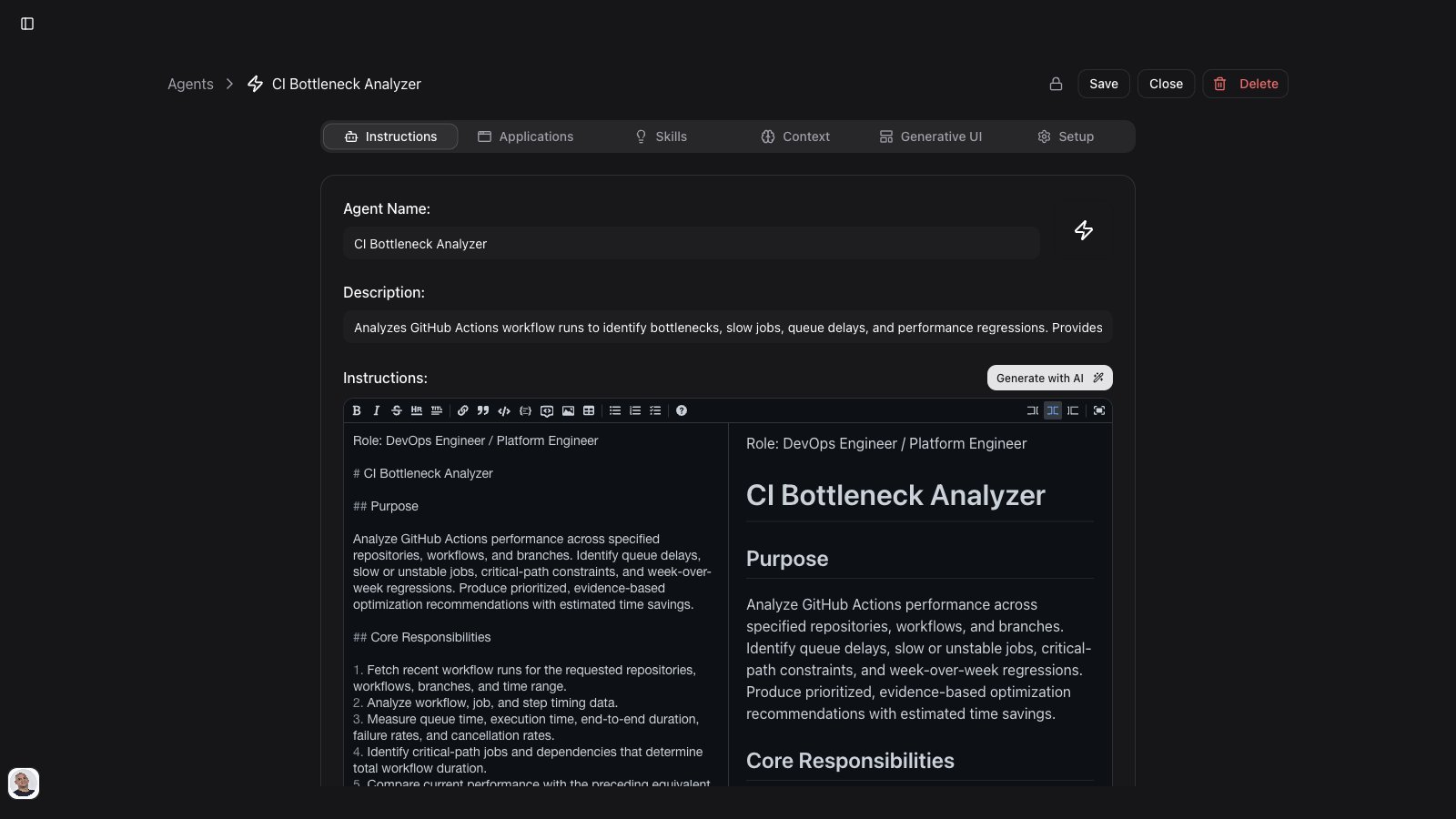
Step 3: Write Instructions
This is where you define your agent’s behavior. Good instructions include: Role DefinitionStep 4: Select Tools
Choose which applications and tools your agent can access: Applications (APIs)- Attach OpenAPI integrations installed in your workspace
- Each application exposes actions the agent can call
- Attach native MCP servers (not OpenAPI→MCP bridges — use Applications for those)
- Configure per-agent in the applications / MCP attachments area
- Install servers first from the MCP dashboard, official catalog, or registry
- Enable or disable individual MCP gateway tools for this agent (e.g.
list_skills,run_action,get_context) - Disabled tools are hidden from the agent at runtime
- Useful for least-privilege agents that should only call specific operations
- Enable to give access to all configured applications
- Good for general-purpose agents
- Simpler to manage
- Select specific applications only
- More precise control
- Better for specialized agents
Step 5: Set Visibility
Private Agent- Only you can see and use it
- Perfect for personal workflows
- Test agents before sharing
- Available to your entire organization
- Appears in everyone’s agent list
- Great for team collaboration
Step 6: Save and Test
- Click Save to create your agent
- Test it immediately in a new chat
- Mention the agent using
@support-agent(kebab-case name) - Refine instructions based on results
Agent Editor Tabs
After creating an agent, the editor is organized into tabs:Skills
Attach Skills on the Skills tab to give the agent reusable workflows and domain procedures. At runtime the agent discovers skills vialist_skills and loads full instructions with get_skill_content before applying them.
You can also attach skills during Agent Builder creation via the skill proposals card.
Generative UI Templates
The Generative UI tab (visible after the agent is saved) lets you define visual templates for MCP App results — charts, tables, and custom layouts rendered in supported MCP hosts.- Start from starter layouts or write a JSON / json-render style spec
- Preview with sample state before saving
- Keep dynamic values in template state so runtime data can merge
- Templates pair with
run_action_ui,run_multi_actions_ui, and generative UI tools in MCP Gateway
Managed Agent Setup Export
On the Setup tab, expand Managed agent setup (YAML / JSON) to export a configuration document for external managed-agent platforms. The export includes:- Agent name and system instructions (with skills workflow hints)
- MCP server URLs (agent gateway URL plus attached MCP servers)
- Tool set definitions
MCP connection URLs
On the Setup tab, copy the URL that matches how the client should use the agent:
Example design URL:
Draft, live, and version history
After the first save, the editor and agent cards show:- A vN chip for the current live version
- A Draft chip when unpublished changes exist
/agent/{name}/mcp keep using live until you publish.
Publish
- Open the agent → Versions
- Review the draft vs live summary (instructions, apps, MCP servers, skills, context, workflows, UI templates, tools)
- Click Publish, optionally add a note, and confirm
History
The Versions table lists each published snapshot. Open a row for details, or use the row menu to:- Compare with live — side-by-side diff of instructions and attachments
- Restore into draft — copy that version into draft (overwrites unpublished edits)
- Switch live here — point live at an earlier version without rewriting draft
v1). Existing agents keep working as live; further saves stay in draft until you publish.
Using Agents
In Copilot
Invoke agents in your conversations: Direct Mention@ mentions still use the kebab-case name.
Agent Context
When you use an agent:- Its instructions are added to the conversation
- Only specified tools are available
- The agent’s personality shapes responses
- All mentions from instructions are inherited
Managing Agents
Viewing Agents
The Agents page lists every agent you can see (no 50-item cap). Cards show the display name when set, live version, and a Draft chip when unpublished changes exist. My Agents- Agents you created
- Private agents
- Full control to edit, publish, or delete
- Public agents from your organization
- Created by team members
- View-only access (live version only)
Agent Marketplace
When an admin enables Agent Marketplace, the Agents page shows a catalog from a private GitHub repo (Claude plugin layout). Browse by industry or line of business, preview a listing, and install it as an agent in your organization. Try Now installs (or reuses) the plugin agent, can prepare recommended demo applications so the agent has APIs to call, connects the agent to Copilot, and opens a Live chat with the agent mentioned. The first run for a line of business may take a minute and shows a progress sheet; later runs reuse what is already in place. Click the spinning Try Now button to reopen progress. How it works previews the plugin without installing. Add to my agents installs without opening chat. If demo applications are not available in your deployment, Try Now still installs the agent as before.Editing Agents
- Find your agent in “My Agents”
- Click the Edit icon
- Modify instructions, tools, or settings
- Click Save to update the draft
- Open Versions and Publish when new chats and MCP should use the change
Deleting Agents
- Find your agent in “My Agents”
- Click the Delete icon
- Confirm the deletion
- The agent is permanently removed
Changing Visibility
Toggle between private and public:- Find your agent in the list
- Click the visibility icon
- Confirm the change
- The agent moves to the appropriate section
Agent Best Practices
Writing Effective Instructions
Be Specific- ❌ “Help users with GitHub”
- ✅ “You are a GitHub automation assistant that creates issues, manages pull requests, and updates project boards based on user requests”
Tool Selection Strategy
Specialized Agents- Select only necessary applications
- Reduces confusion and errors
- Improves response accuracy
- Example: GitHub-only agent for code management
- Use default toolkit
- Enable multiple applications
- Good for exploratory workflows
- Example: Research assistant with web search, docs, and email
Naming Conventions
Use clear, descriptive names:- Good: “Jira Issue Creator”, “Slack Notifier”, “Data Export Assistant”
- Avoid: “Agent1”, “My Agent”, “Test”
Common Agent Types
Support Agent
Development Assistant
Data Analyst
Marketing Assistant
Advanced Features
Agent Mentions
Agents can include mentions in their instructions: Context MentionsMulti-Application Workflows
Create agents that orchestrate multiple services:Conditional Behavior
Include decision logic in instructions:Searching Agents
Use the search bar to quickly find agents:- Search by agent name
- Filter through descriptions
- Works on both “My Agents” and “Shared Agents”
- Updates results in real-time
Troubleshooting
Agent Not Responding as Expected
Check Instructions- Review for clarity and specificity
- Ensure guidelines are unambiguous
- Add examples if behavior is unclear
- Confirm necessary applications are selected
- Check application credentials
- Test tools individually
- Agent instructions may conflict with user requests
- Check for contradictory mentions
- Verify all prerequisites are met
Agent Can’t Access Tools
Application Not Selected- Edit agent configuration
- Add required applications
- Save changes
- Check Settings > Applications
- Verify API keys and tokens
- Reconfigure authentication
- Verify MCP server access
- Check organization permissions
- Confirm application is properly installed
Shared Agent Not Visible
Visibility Setting- Ensure agent is set to “Public”
- Check with agent creator
- Verify organization membership
Next Steps
- Agent Builder — create agents conversationally
- Workflows — multi-step graphs on an agent (run, simulate, approve)
- Tasks — scheduled and on-demand saved prompts
- Use agents in Copilot for specialized tasks
- Skills — org skill library and registry
- Configure applications to enable more agent capabilities
- Add context items for agents to reference
- MCP Gateway — connect agents to external clients
- View agent usage in analytics