
Overview
Apigene Copilot is an AI-powered conversational interface that enables you to interact with multiple applications, APIs, and services using natural language. Instead of writing code or making manual API calls, simply describe what you want to accomplish, and Copilot will execute the necessary actions.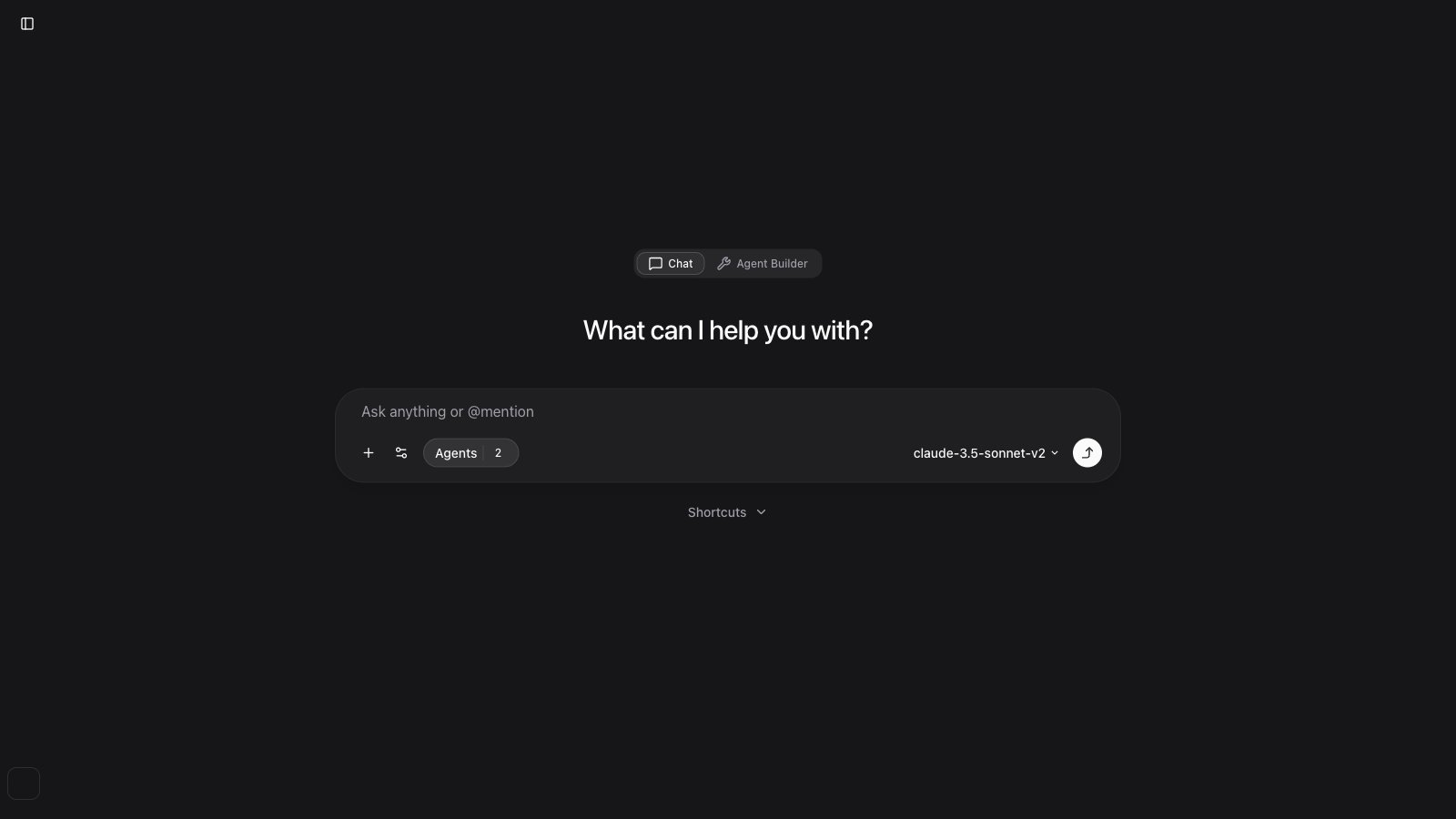
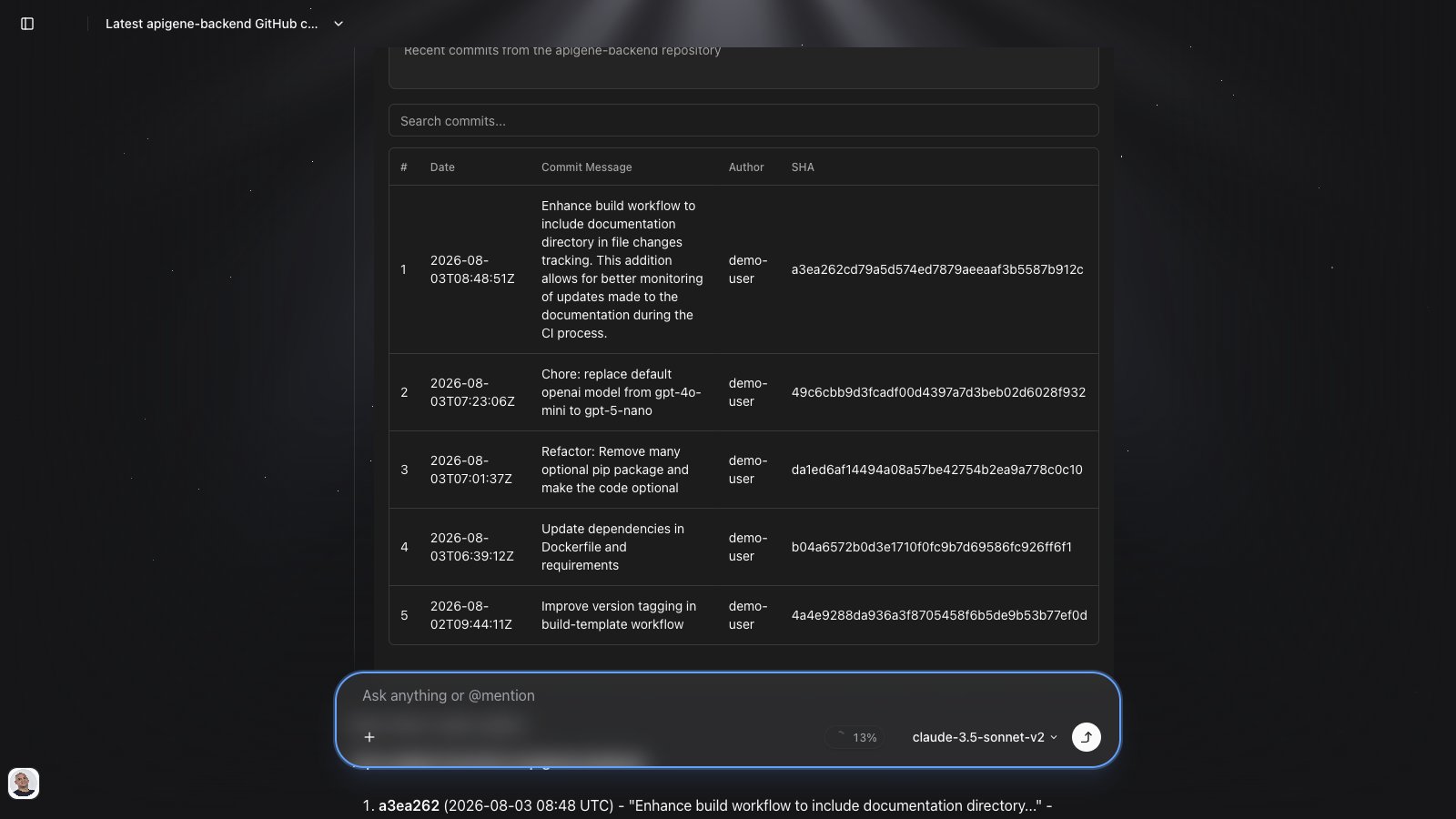
Key Features
Multi-Application Support
- Connect and interact with multiple applications simultaneously
- Execute complex workflows across different services
- Seamlessly switch between applications in a single conversation
Intelligent Tool Selection
- Automatic selection of the right tools and APIs based on your request
- Context-aware recommendations for API operations
- Smart parameter detection and validation
Real-Time Execution
- Live execution of API calls with streaming responses
- View request and response data in real-time
- Monitor tool invocations as they happen
Design Agent (Agent Builder)
A dedicated mode for creating and configuring agents — not for everyday chat. In the UI it is labeled Design Agent. Use Create for a new agent, or Extend to add a skill, workflow, or UI to an existing draft (publish stays explicit). Use Live (Chat) to talk to your apps and agents. Switch to Design and open Design Agent to define agents as resources. See the full Agent Builder guide for workflows, examples, and when to use each mode.Model Selection
Choose from multiple AI model providers configured in Settings:- OpenAI — GPT models
- Anthropic — Claude models
- Google — Gemini models
- xAI — Grok models
- Amazon Bedrock — AWS-hosted models (IAM credentials)
- Microsoft Foundry — Azure OpenAI deployments
Reasoning Models
For models that support extended thinking, Copilot can show a reasoning panel alongside the response. Organization admins set Reasoning Effort (None, Low, Medium, High) under Settings → Organization → Model Settings.Getting Started
Starting a New Chat
- Stay in the Live workspace (sidebar toggle) and click New Chat
- To design an agent instead, switch to Design and open Design Agent, or use the mode toggle on the home screen
- Type your request in the message input at the bottom
- Press Enter or click Send to start the conversation
Onboarding Checklist (Trial Users)
New trial users see a getting started checklist on the home screen. It tracks progress toward:- Configuring a model provider (API key)
- Installing and configuring an application
- Creating your first agent
Your First Query
Try these example queries to get started:- “List all my GitHub repositories”
- “Create a new Jira issue for the bug I found”
- “Send a message in Slack to the #engineering channel”
- “Get my last 10 emails from Gmail”
Selecting AI Model
- Click the model selector in the top bar
- Choose from available models based on your needs:
- Fast models: Quick responses for simple tasks
- Powerful models: Complex reasoning and multi-step workflows
- Balanced models: Good balance of speed and capability
Chat Features
Tool Invocations
When Copilot executes actions, you’ll see:- Tool name and description: What action is being performed
- Parameters: The data being sent to the API
- Status indicators: Success, loading, or error states
- Response data: Full results from the API call
- Generative UI: Interactive widgets (tables, charts, and similar) stay expanded in the tool group instead of collapsing with other calls. Workflow runs that render UI are listed separately from the collapsed group.
Message Actions
Each message supports:- Copy: Copy message content to clipboard
- Regenerate: Re-run the AI response with same context
- Edit: Modify your previous message
- Branch: Create a new conversation from this point
File Attachments
Upload files to enhance your conversations:- Click the + button in the message input and select files
- Drag and drop files onto the chat
- Paste a screenshot (
⌘V/Ctrl+V) while the chat input is focused — useful after a screen capture to the clipboard
image/*), PDF (.pdf), plain text and code files (text/*), and other readable text-based files. Binary files that cannot be read as text prompt you to describe what you need instead.
File attachments are available in Chat mode. Agent Builder focuses on agent configuration rather than file analysis.
Mentions
Type@ in the chat input to pick a resource. The picker is split into columns:
- Agents — invoke a specific agent (and its workflows)
- MCP — attach an application or native MCP server; the picker shows connection status (connected, idle, or disconnected). Use Login / Logout on a native OAuth server to connect or switch your account
- Tools — built-in tools available in chat
Diagrams
When the assistant replies with a Mermaid chart (flowchart, sequence, and similar), the diagram auto-fits in the message so large charts stay readable without horizontal scrolling.Commands (Saved Prompts)
Reuse frequent prompts without retyping them. Commands are personal saved prompts you can insert into chat. Create a command- Type a prompt in the chat input
- Click the bookmark button to open Save command
- Give it a name, optionally bind an agent, and save
- Type
/in the chat input - Search or select a saved command
- The prompt is inserted (and the bound agent is mentioned when one is attached)
Follow-up Suggestions
When enabled, Copilot shows short Continue with chips under the latest assistant reply. Click a chip to send that follow-up as your next message. Enable or disable under Settings → Personal → Chat → Follow-up suggestions. Off by default.Message Queue
While Copilot is still streaming a reply, you can keep typing and send the next message. Queued messages appear above the input (up to 5 per thread). You can:- Remove a queued message before it sends
- Send now to interrupt the current run and flush that message when ready
Use Case Proposals
In Chat and Agent Builder, ask Copilot to suggest concrete use cases for your apps (for example, “Suggest use cases for Jira and Slack”). Copilot can show a use case proposals card you can review and act on, similar to skill proposal cards in Agent Builder. If OpenLegacy Hub is connected for Agent Builder, Hub projects can appear on those proposals. Building a Hub use case provisions a scoped Hub skill and attaches the ol-hub app.Chat Preferences
Open Chat Preferences (shortcut ⇧⌘L / Shift+Ctrl+L) to personalize how Copilot behaves in chat:- User instructions / personalization — how you want to be addressed, role, traits, and related fields
- MCP instructions — optional per-MCP-server customization for tool behavior
- Base system prompt — personal base prompt applied across chats
Languages and layout
Set the Copilot UI language under Settings → Personal → Language (English, Español, Deutsch, Français, Português (Brasil), 日本語, עברית). The choice is stored on your user. Auto-generated thread titles use that language. Hebrew uses a full right-to-left layout. Copilot also detects Hebrew and Arabic in messages, suggestions, and the composer and applies RTL alignment. Code blocks and byte sizes stay LTR for readability.Tool Control
Tool Choice Modes
Control how Copilot uses tools: Auto (Default)- AI automatically decides when to use tools
- Best for most use cases
- Balances efficiency and accuracy
- Forces the AI to use at least one tool
- Ensures API interactions happen
- Good for action-focused tasks
- Disables all tool usage
- Pure conversational mode
- Use for questions and planning
Selecting Applications
Choose which applications Copilot can access:- Click the applications dropdown in the top bar
- Select or deselect applications
- Only selected applications will be available for the conversation
- Leave empty to allow access to all configured applications
Advanced Features
Multi-Step Workflows
Copilot can execute complex multi-step operations:- Create the GitHub issue
- Extract the issue URL from the response
- Post to Slack with the URL included
Context Awareness
Copilot maintains context throughout the conversation:- References to previous messages
- Remembers data from earlier tool invocations
- Builds on previous results
Error Handling
When errors occur:- Clear error messages explain what went wrong
- Suggestions for how to fix the issue
- Option to retry with corrected parameters
Best Practices
Writing Effective Prompts
Be Specific- ❌ “Get my data”
- ✅ “Get all issues created in the last week from Jira”
- ❌ “Update the issue”
- ✅ “Update issue PROJ-123 to set status to ‘In Progress’”
- Instead of one complex request, use multiple specific requests
- Let Copilot handle each step and verify results
Managing Conversations
Create New Threads- Start new conversations for unrelated topics
- Keep conversations focused on a single workflow
- Use descriptive titles for easy reference
- Type
@to browse Agents, MCP, and Tools in separate columns - The MCP column shows connection status (connected, idle, or disconnected)
- Mention a specific agent for specialized tasks
- Reference context items for consistent data
Performance Tips
Choose the Right Model- Use faster models for simple queries
- Reserve powerful models for complex reasoning
- Consider cost and response time tradeoffs
- Select only relevant applications
- Reduces tool selection overhead
- Improves response accuracy
Keyboard Shortcuts
Labels use ⌘ on macOS and Ctrl on Windows.⌘/Ctrl + Enter: Send message⌘/Ctrl + K: Open command palette/: Open Tasks picker (saved prompts)Shift + ⌘/Ctrl + L: Open Chat Preferences (when available)⌘/Ctrl + V: Paste a screenshot or file into chat when the input is focusedEscape: Cancel current operation↑: Edit previous message
Troubleshooting
Copilot Not Responding
- Check your internet connection
- Verify API keys are configured
- Try refreshing the page
Wrong Tool Selected
- Be more specific in your request
- Mention the application name explicitly
- Check that the right applications are enabled
Authentication Errors
- Verify application credentials in Settings
- Check if tokens have expired
- Reconfigure the application security settings
Next Steps
- Agent Builder — create and configure agents conversationally
- Tasks — schedule and reuse prompts
- Workflows — multi-step agent graphs
- Configure your applications to enable more capabilities
- Native MCP Servers for remote MCP integrations
- Create and edit agents in the full editor
- Skills — reusable instruction libraries
- Add context items for consistent data access
- View analytics