
Overview
Design Agent (documented here as Agent Builder) is a dedicated Copilot mode for designing, listing, inspecting, and configuring agents. Use it when you want to define an agent as a resource — instructions, applications, MCP servers, skills, and setup — rather than simply chat with one. Chat mode is for having a conversation (optionally with one agent selected via@). Design Agent is for agent management: Create a new agent, or Extend an existing draft with skills, workflows, or UI.
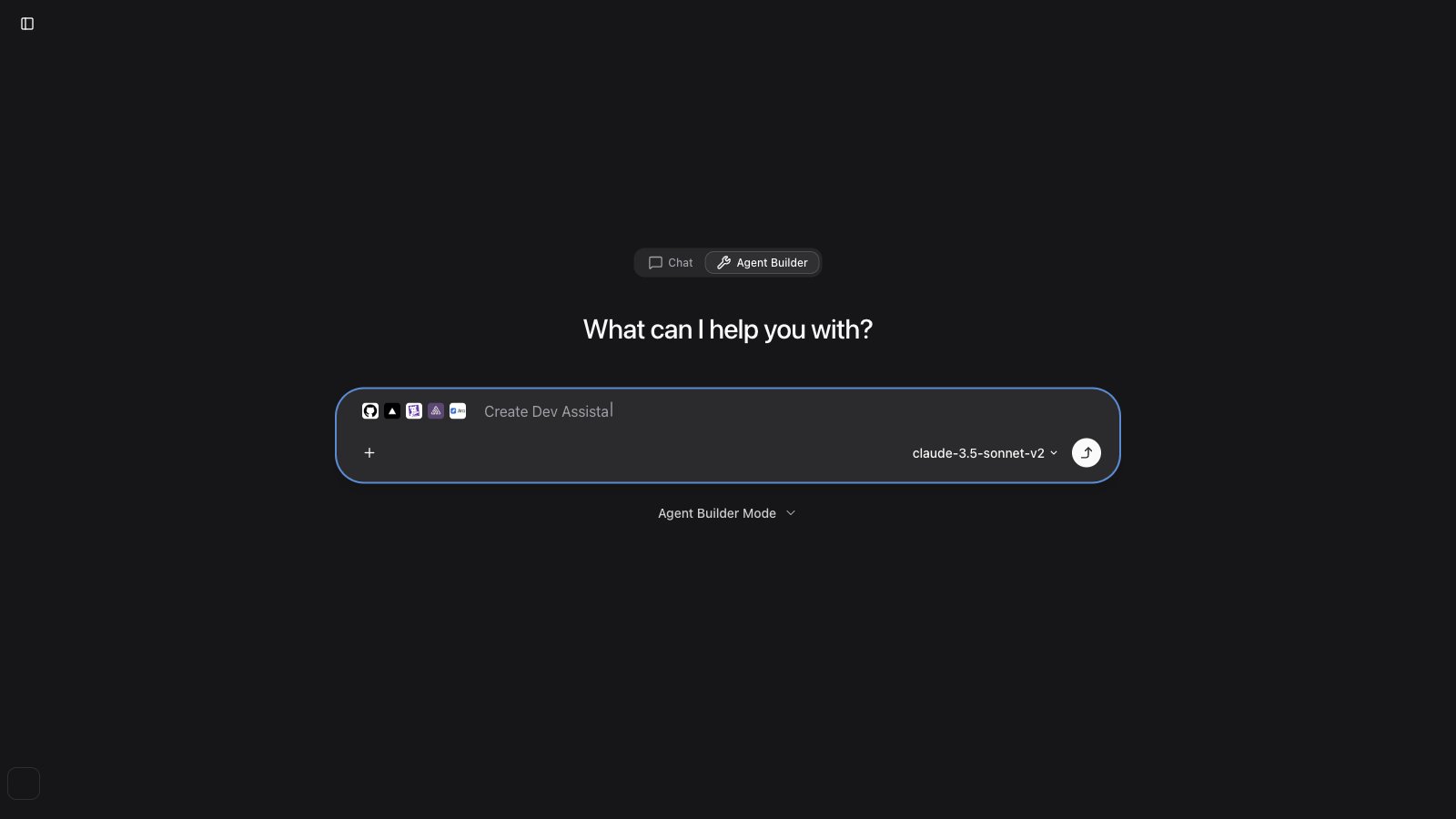
Chat vs Agent Builder
If you ask in Chat to create an agent, list your agents, or inspect full agent configuration, Copilot will suggest switching to Design Agent and show a one-click shortcut card.
Switching to Agent Builder
From the Design workspace
Switch the sidebar to Design, then open Design Agent (top of the Design sidebar). Choose Create or Extend depending on whether you are defining a new agent or adding to an existing draft. Organization members and phones stay in Live and do not see Design Agent.From the home screen
On a new chat (home), use the Live / Design toggle:- Live (Chat) — default conversational mode
- Design — agent creation and management mode (Create or Extend)
The Live / Design toggle is in the sidebar for admins on desktop. From an ongoing Live thread, use the in-chat Design Agent shortcut card, or switch to Design and start a new Design Agent session.
From an ongoing chat
When Copilot detects agent-management intent (create, list, clone, inspect config, compare agents), it can show a Design Agent shortcut card in the thread. Choose Create or Extend without leaving the conversation context. You can also open Build → Agents in the Design workspace (/agents, /agent/new, /agent/[id]) for the full agent editor UI.
What Agent Builder can do
Agent Builder uses specialized tools to help you end-to-end:- Discover applications — search APIs and MCP servers, browse a preloaded catalog of installed and official integrations
- OpenLegacy Hub — when Hub is enabled, include Hub projects in app scope; Builder can provision a Hub skill and attach ol-hub when you build from those projects (see OpenLegacy Hub)
- Generate and refine instructions — AI-drafted system prompts based on your use case
- Skills — search your org library and skills.sh, propose skills to attach, and wait for your approval before creating the agent
- Create and update agents — name, optional display name, description, instructions, applications, MCP servers, contexts, and skills
- Extend an existing agent — add a skill, workflow, or generative UI to the draft (publish remains a separate step)
- Clone agents — start from an existing agent as a template
- Validate configuration — check names, instructions, and attachments before saving
- Present results — after creation, shows an agent card and setup instructions for connecting to Claude, Cursor, ChatGPT, and other MCP clients
Recommended workflow
Agent Builder follows a guided flow. You do not need to memorize tool names — describe what you want in natural language.1. Describe the agent
Start with a short brief, for example:2. Discover integrations
It searches your installed applications and official catalog, and recommends APIs (OpenAPI integrations) or native MCP servers as appropriate. Install native servers first via Native MCP Servers when needed.3. Optional: attach skills
If your use case maps to reusable workflows (SEO, code review, deploy runbooks, etc.), Agent Builder can:- Search your org Skills library and the public registry
- Show an interactive skill proposals card (1–5 matches)
- Wait for you to install, select, or skip — it never auto-installs without your choice
4. Generate instructions
Agent Builder drafts a structured system prompt (role, guidelines, boundaries) and can refine it based on your feedback.5. Validate and create
Configuration is validated before the agent is created:- Name — required; up to 64 characters; lowercase kebab-case (
support-agent). Spaces and underscores become hyphens - Display name — optional; up to 64 characters; shown in chat and cards instead of
name - Description — required; up to 300 characters; short summary of what the agent does
- Instructions — required; up to 4,000 characters; system prompt / behavior
- Valid application, MCP, skill, and context references (OpenAPI-backed MCP proxies must be attached as APIs, not native MCP servers)
6. Review setup
Immediately after creation:- An agent details card appears in chat (click through to the edit page)
- An agent setup card shows how to connect the agent to external AI clients via MCP
Agent naming guidelines
Agent Builder enforces concise, URL-safe names:- 2–3 words recommended (e.g.
dev-assistant,support-bot); hard limit 64 characters - Lowercase letters, numbers, and hyphens only (
support-agent). Spaces and underscores become hyphens as you type - Avoid long compound names like
dev-flow-assistant-github-jira - Description (max 300 characters) and instructions (max 4,000 characters) are both required at creation time
Example prompts
Create from scratchAfter Agent Builder creates an agent
Fine-tune in the Agents editor:- Instructions — edit the system prompt directly
- Applications — attach or remove OpenAPI integrations
- MCP Servers — native MCP attachments
- Skills — org skills library
- Context — reusable knowledge items
- Generative UI — visual templates for MCP App results (after the agent is saved)
- Workflows — create, visually edit, run, and simulate graphs
- Versions — publish draft changes to live, compare, and restore snapshots
- Setup — live and design MCP URLs, per-tool toggles, and managed setup export
Best practices
Be specific about integrations- Name the systems you need (Slack, Jira, Gmail) so Builder picks the right apps
- Short answers upfront save back-and-forth later
- After creation, switch to Live, start a new chat, and mention the agent with
@to try it in a real conversation
- Agent Builder gets you to a strong first version; use the Agents page for precise tool and instruction tweaks
- After the first save, further edits stay in draft until you Publish on the Versions tab — chat and the runtime MCP URL keep using live
Troubleshooting
I do not see the Design Agent toggle
- Switch the sidebar to Design (admins, desktop). Members and phones stay in Live
- Open Design Agent from the Design sidebar, or use the Design Agent shortcut card in a Live thread
Agent Builder created an agent but tools fail in Chat
- Open the agent in Agents → Applications / MCP Servers and confirm integrations are attached
- Configure Security credentials for each application
- Test with
@agent-namein a fresh Chat thread
Skills were skipped — can I add them later?
Yes. Open the agent → Skills tab, or browse the Skills library and attach from there.Hub projects are missing from the Apps picker
- Enable Use in Agent Builder under Settings → Organization → Open Legacy and confirm Test connection succeeds
- See OpenLegacy Hub for install, Builder wiring, and troubleshooting
Next steps
- Agents — edit instructions, tools, generative UI, and setup export
- Skills — org skill library and registry
- OpenLegacy Hub — connect Hub, install projects, and build Hub-ready agents
- Copilot — use your agent in Chat mode
- MCP Gateway — connect agents to external AI clients