
Overview
Skills are reusable instruction packages that teach agents how to handle specific tasks consistently. They follow the Agent Skills specification — aSKILL.md file with YAML frontmatter and a Markdown body.
Skills live in your organization library. Attach them to agents so the same workflows, checklists, and domain knowledge apply everywhere that agent runs — in Copilot Chat, Agent Builder, and via MCP Gateway.
Why use skills
- Reuse — write once, attach to many agents
- Consistency — standardized procedures (PR review, SEO audits, deploy runbooks)
- Discoverability — browse your library or install from the public registry
- Compatibility — Agent Skills format works across Apigene and external MCP clients
Accessing Skills
In the Design workspace, open Build → Skills.Creating skills
Upload a skill
- Click Upload Skill
- Choose a tab:
- Upload — drop or select a
SKILL.mdfile, or a.zipof a skill folder (SKILL.mdat the zip root or in a wrapper folder such asol-deck/SKILL.md, plus optionalscripts/,references/,assets/) - GitHub — import from a public GitHub repository URL
- Upload — drop or select a
- Review validation results and save
name and description in frontmatter, with procedural content in the Markdown body.
Generate with AI
Use Generate Skill to draft aSKILL.md from a short description. Edit the result before saving.
Browse the registry
Click Browse Skills to search skills.sh — the public skill registry:- Search by keyword or use case
- View install counts and source
- Install into your org library with one click
- Already-installed skills show an Installed badge
Managing skills
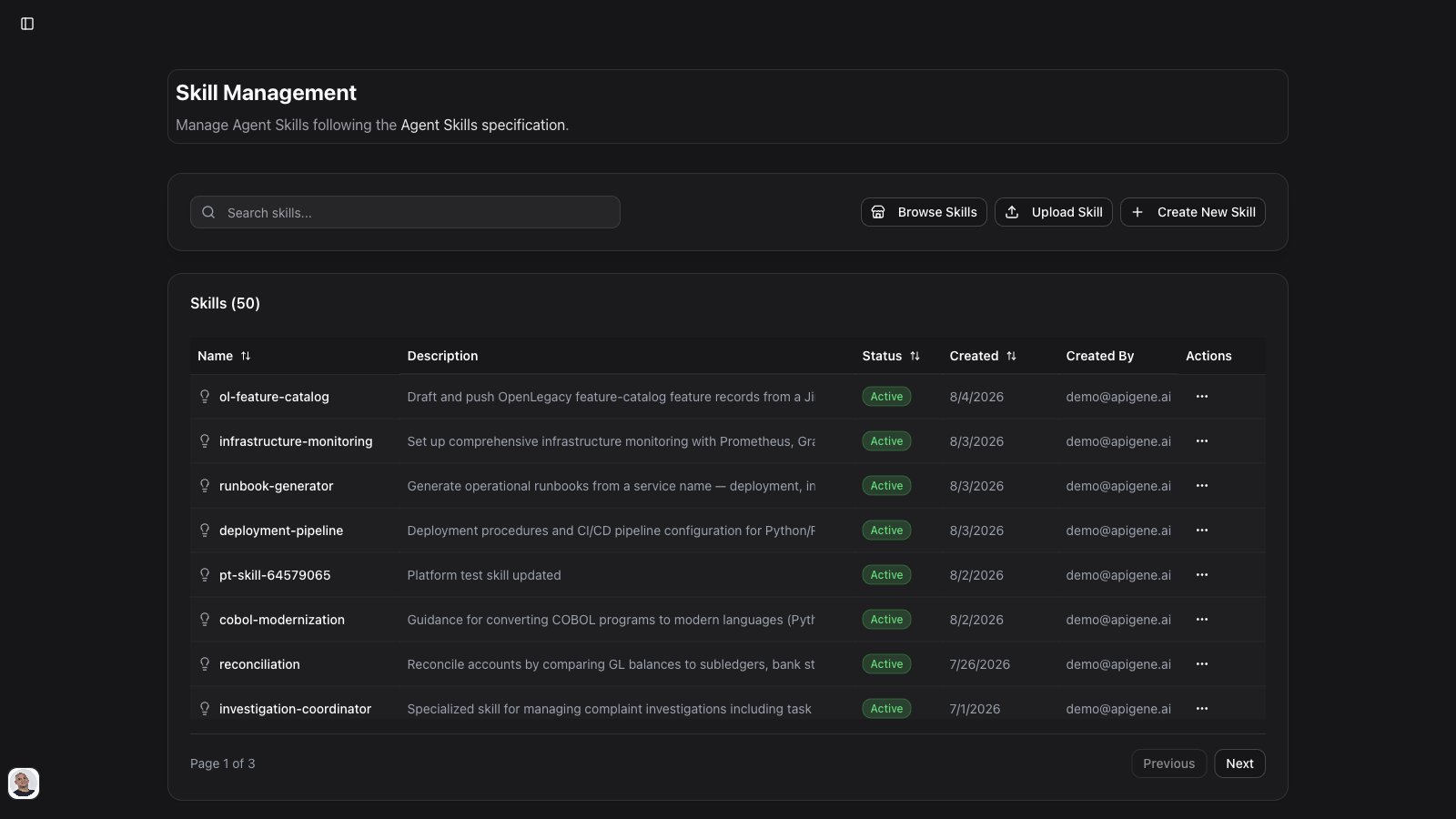
The Skills table lists all org skills with:- Name and description (from frontmatter)
- Search and sort for large libraries
- Edit — update instructions and optional files
- Download — export the skill’s
SKILL.mdcontent as a Markdown file - Delete — remove from the org library (does not remove from agents until you detach)
SKILL.md content, metadata, and packaged files.
Attaching skills to agents
From the Agents editor
- Open Agents → select an agent → Skills tab
- Add skills from your org library
- Save the agent
From Agent Builder
When building an agent in Agent Builder, Copilot can:- Search your org library and the registry
- Show a skill proposals card with recommended matches
- Wait for you to install or select skills before calling
create_agent
ol-hub-{project}) with Hub contract, method, and flow IDs. That skill is created or updated automatically — you do not upload it yourself.
How agents use skills at runtime
In Chat and MCP Gateway Agent mode, the model:- Calls
list_skillsto discover attached skills (metadata only) - Calls
get_skill_contentfor relevant skills before following their procedures
SKILL.md before applying a skill.
Skill structure
A minimal skill:references/ files and link from the body (progressive disclosure).
Best practices
Write trigger-rich descriptions- The
descriptionin frontmatter is how the model decides when to activate the skill — include use cases and triggers there, not only in the body
- Core workflow in the body; detailed docs in
references/
- Install registry skills for common patterns, then customize copies for your org
- A few well-chosen skills per agent beats attaching everything
Skills vs Context
Use both when an agent needs how to work (skills) and what to know (context).
Troubleshooting
Skill validation failed on upload
- Check frontmatter:
name(lowercase, hyphens) anddescription(includes when-to-use triggers) - Ensure the file is valid Markdown
Agent ignores a skill
- Confirm the skill is attached on the agent Skills tab
- Make the description more specific about when to use the skill
- In Chat, ensure the agent (with skills attached) is selected via
@
Registry install failed
- Verify network access to the registry
- Try importing via GitHub if the skill is hosted in a public repo
Next steps
- Agent Builder — create agents with skill proposals
- Agents — attach skills and configure behavior
- MCP Gateway Tools —
list_skills,get_skill_content,add_skillin Agent mode